
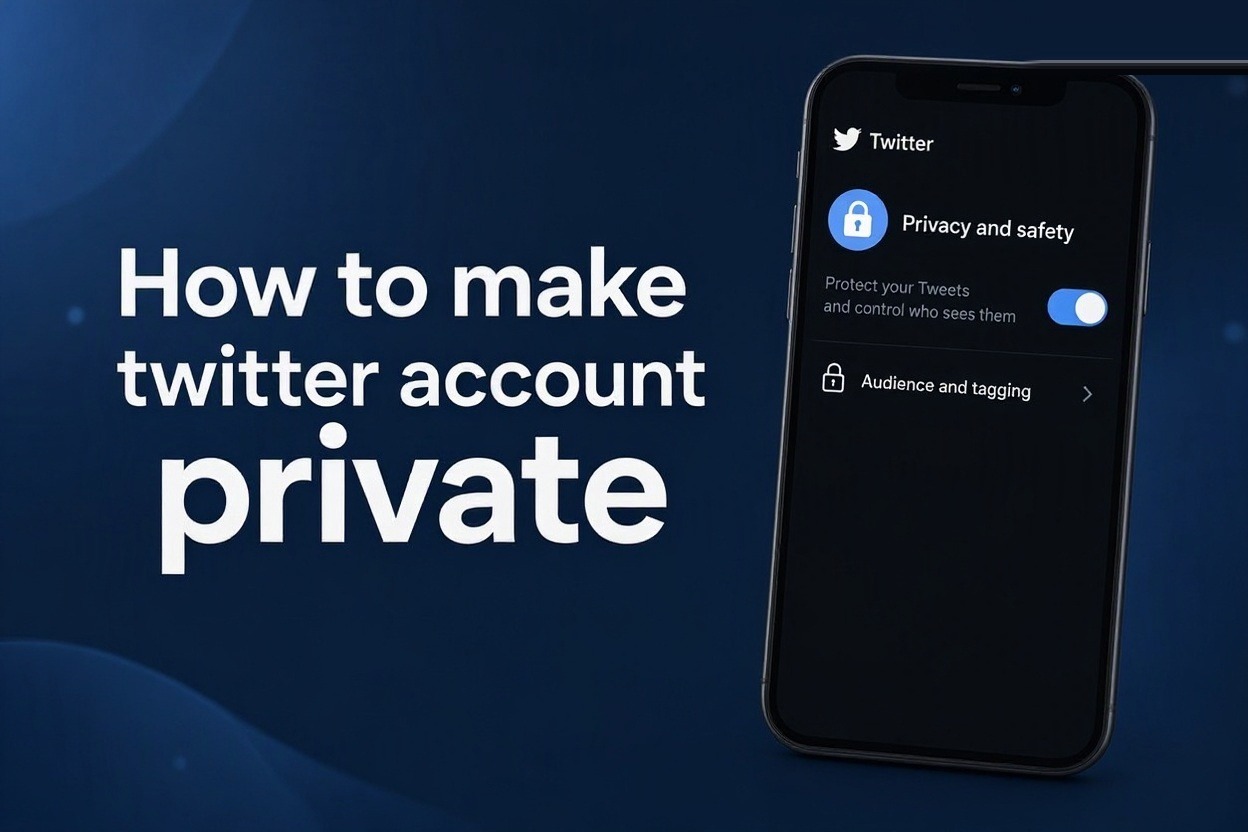
Learning how to make twitter account private is one of the simplest ways to take control of your online presence and protect your personal conversations. When your account is public, anyone can see your posts, follow you without permission, and find your updates in search results. By switching to a protected account, you decide exactly who can follow you and view your tweets. In this complete guide, you will learn what a private Twitter account means, why it matters, step by step setup for phone and desktop, what changes after you go private, common mistakes, best practices, real use cases, advanced tips, and answers to frequently asked questions.
Whether you want more privacy for personal reasons, safety from strangers, or better control over your audience, this article will walk you through everything in simple language. You will also discover how to manage follow requests, adjust related privacy settings, and keep your account secure long term without losing the fun of using Twitter.
Why Make Your Twitter Account Private
A private Twitter account gives you ownership over your audience and your content. Instead of broadcasting every thought to the entire internet, your tweets are shared only with approved followers who you have personally accepted.
This level of control is valuable because tweets can be misunderstood, screenshot, or shared out of context. Privacy helps you speak more freely with friends, family, and trusted communities without worrying about strangers, coworkers, or random accounts watching your profile.
Going private also reduces spam, unwanted replies, and follow bot activity. Most harassment and impersonation issues happen on public profiles because they are easy to find and target daily.
For parents, teens, job seekers, teachers, and professionals, privacy adds an important layer of safety. You can still network and join conversations, but you choose when and with whom your posts are visible.
Private does not mean isolated. You can still reply, use direct messages, follow others, and enjoy Twitter fully while keeping your own posts protected and intentional.
How To Make Twitter Account Private On Phone
Follow these simple steps to protect your tweets using the Twitter app on iPhone or Android. The process takes less than two minutes.
- Open The Twitter App: Launch the app on your phone and make sure you are logged into the account you want to make private.
- Tap Your Profile Icon: Tap your profile picture in the top left corner to open the side menu with settings and profile options.
- Go To Settings And Privacy: Scroll down in the menu, tap Settings and Support, then tap Settings and privacy to access controls.
- Select Privacy And Safety: Inside settings, choose Privacy and safety where audience, tagging, location, and content controls are located.
- Tap Audience And Tagging: Open the Audience and tagging section to find the option that controls who sees your posts.
- Turn On Protect Your Posts: Toggle on Protect your posts. The switch will turn blue or green when protection is active.
- Confirm Your Choice: If prompted, confirm that you want to protect your tweets and approve followers manually going forward.
- Check Your Profile Badge: Visit your profile to confirm a lock icon appears next to your name, showing your account is now private.
How To Make Twitter Account Private On Desktop
Protecting your tweets from a computer is just as easy. Use these detailed points to complete the process correctly.
1. Open Twitter Settings From Your Profile
Log into your Twitter account on a browser, click the More option in the left sidebar, then choose Settings and Support followed by Settings and privacy. This opens your main control panel where all audience and safety options are carefully organized for easy access and review.
2. Navigate To Privacy And Safety Controls
Click on Privacy and safety in the settings menu to see all visibility options. This section controls your audience, muted accounts, blocked accounts, direct messages, location data, and content preferences. Take a moment to review each category so you understand how they work together to protect you.
3. Select Audience Tagging And Visibility
Click on Audience and tagging under Privacy and safety. Here you will find the Protect your posts checkbox. This is the main switch that determines whether your tweets are public to everyone or visible only to people you have approved as followers on your private profile.
4. Enable Protect Your Posts Option
Check the box next to Protect your posts to make your account private. Twitter will ask you to confirm the change. Once confirmed, only your current followers will continue to see your past tweets, and new users must send a request that you approve first.
5. Review Follower Requests Carefully
After enabling protection, check your follower requests regularly. Go to your profile, open the follower requests tab, and review each profile before accepting. Look for real photos, bios, and activity to avoid spam, bots, or strangers who may misuse your content or information.
6. Save Changes And Verify Lock Icon
Twitter usually saves automatically, but refresh your profile to confirm a small lock icon appears next to your username. Ask a friend who does not follow you to check if your tweets are hidden. This quick verification confirms that your private settings are working correctly and consistently.
What Happens When You Protect Your Tweets
Making your account private changes how people discover and interact with your content. Here is what to expect after protection.
1. Only Approved Followers See Tweets
Once protected, your tweets are visible only to people who already follow you and any new followers you manually approve. Strangers visiting your profile will see your bio and profile picture but will not see your timeline, replies tab content, or media collection until you accept them.
2. New Followers Need Your Approval
Anyone who wants to follow you must send a follower request first. You will receive a notification and can accept or decline each request individually. Until you approve, they cannot see your protected tweets, likes tab details, or full interaction history on the platform.
3. Tweets Cannot Be Retweeted Publicly
Protected tweets cannot be retweeted by others using the standard retweet button. This prevents your posts from going viral without your knowledge. Followers can still screenshot or copy text manually, so always think before posting sensitive personal details or confidential workplace information online.
4. Replies Are Limited To Followers
When you reply to a non follower while private, they may not see your reply in their notifications timeline fully. Your replies are primarily visible to your approved followers. This makes public conversations harder, so consider if you want to stay private during events, chats, or customer support interactions.
5. Search And Hashtags Become Restricted
Your protected tweets will not appear in public Twitter search, Google search, trending topics, or hashtag pages. Only your followers can find them through their home timeline. This is excellent for privacy but means you will get less discovery, growth, and engagement from new audiences interested in your topics.
6. Past Tweets Become Protected Too
Switching to private retroactively protects all your previous public tweets. Old posts that were once visible to everyone instantly become visible only to followers. However, if anyone retweeted, quoted, or embedded them before, those copies may still exist publicly and cannot be automatically removed by this setting.
Key Twitter Privacy Factors To Review
Going private is powerful, but these related settings determine how secure your overall presence truly remains every day.
- Direct Messages Control: Limit message requests so only people you follow can message you without a separate request filter.
- Photo Tagging Permission: Set tagging to only people you follow to prevent strangers from tagging you in spam photos.
- Location Information: Turn off precise location and remove location from past tweets to avoid revealing home or work areas.
- Discoverability Settings: Control whether people can find you by email or phone number in the discoverability section.
- Blocked And Muted Lists: Regularly review blocked and muted accounts to keep harassment, bots, and unwanted viewers away permanently.
Common How To Make Twitter Account Private Mistakes To Avoid
Many users think one switch is enough, but these common errors can leave your account exposed even after going private.
1. Forgetting To Review Current Followers
Going private does not remove existing followers automatically. If you had a public account for years, strangers, bots, and old contacts still see your tweets. Go to your followers list, remove suspicious or unknown accounts, and block anyone you do not trust before sharing personal updates or family photos.
2. Leaving Location And Contact Discovery On
Many people protect tweets but leave email, phone discovery, and precise location enabled. This lets strangers find your profile easily and infer where you live or work. Turn off Add location to your tweets and disable Let others find you by email and phone for stronger overall privacy and safety.
3. Accepting Every Follower Request Quickly
Accepting requests without checking profiles defeats the purpose of being private. Spam accounts often use attractive photos and empty bios. Always review tweets, join date, follower ratio, and activity. Decline or ignore anything suspicious, and remember you can remove followers later without notifying them directly.
4. Thinking Screenshots Cannot Happen
A lock icon does not prevent followers from taking screenshots, copying text, or sharing your posts elsewhere. Never post passwords, addresses, financial details, workplace secrets, or intimate content even when private. Treat every tweet as potentially shareable and share sensitive matters only through trusted direct messages or offline conversations.
5. Ignoring Third Party App Permissions
Old quizzes, analytics tools, and auto posting apps may still have access to read or post from your account. Go to Security and account access, open Apps and sessions, and revoke anything you no longer use. This prevents leaks, spam posts, and data collection that can bypass your careful privacy intentions completely.
6. Switching Back To Public Temporarily
Some users go public for a giveaway or viral thread, then go private again. Remember that any tweets posted while public can be retweeted, indexed, and saved permanently. If you must go public temporarily, avoid posting personal content during that window and review new followers carefully before locking your account again.
Best Practices For How To Make Twitter Account Private
Use these proven practices to get the most protection and peace of mind from your private Twitter account setup.
1. Audit Your Followers Every Month
Set a monthly reminder to review your followers and following lists carefully. Remove inactive accounts, strangers you do not recognize, and anyone who makes you uncomfortable. A smaller, trusted audience leads to more meaningful conversations, less drama, and much lower risk of your personal content being misused or shared inappropriately.
2. Use A Strong Bio Without Personal Details
Your name, bio, profile photo, and banner remain visible even when private. Avoid listing your full address, school, workplace, phone number, or daily routine. Use a general description like photographer or sports fan instead of specific identifiers that strangers could use to find, contact, or impersonate you outside Twitter.
3. Control Replies And Mentions Strictly
Change who can reply to your tweets using the reply control on each post. Choose People you follow or Only people you mention for sensitive topics. This dramatically reduces arguments, pile ons, and unwanted advice while keeping discussions respectful, focused, and enjoyable for your approved community of followers.
4. Turn Off Message Requests From Strangers
Go to Direct messages settings and uncheck Allow message requests from everyone. This ensures only people you follow can start conversations easily. You will receive far fewer spam links, scams, and harassment attempts, and your inbox will stay focused on real friends, family, and legitimate networking contacts you actually trust.
5. Enable Two Factor Authentication Immediately
Privacy means little if someone hacks your account. Turn on two factor authentication using an authenticator app or security key. This adds an extra verification step at login, preventing unauthorized access even if your password leaks. Also use a long unique password stored safely in a reputable password manager.
6. Think Before Posting Personal Media
Photos often contain hidden details like street signs, school uniforms, license plates, or location metadata. Crop images, blur backgrounds, and remove EXIF data before posting. Avoid posting real time vacation photos. Wait until you return home so strangers cannot tell your house is empty and vulnerable.
Practical How To Make Twitter Account Private Use Cases
Different people use private accounts for different reasons. These examples show how protection fits real life needs and goals.
1. Students Protecting School Life Privacy
Students often share memes, class frustrations, and weekend plans they do not want teachers, future employers, or strangers to see. A private account lets them vent, joke, and connect with close friends safely while keeping college admissions officers and potential stalkers away from casual teenage posts and personal photos shared daily.
2. Professionals Separating Work And Personal
Many professionals keep a public LinkedIn for career but want a private Twitter for personal opinions, hobbies, and humor. Going private prevents coworkers or clients from misinterpreting jokes, political views, or late night posts. It allows authentic self expression without risking promotions, partnerships, or professional reputation in sensitive industries.
3. Parents Sharing Family Updates Safely
Parents love sharing kids milestones but worry about predators and data misuse. A private account limited to relatives and close friends allows safe sharing of birthdays, school events, and family photos. It prevents strangers from tracking children while preserving precious memories within a trusted circle of approved followers only.
4. Creators Testing Content Before Launch
Writers, artists, and small business owners use a private secondary account to test ideas, drafts, and product photos with loyal fans before public release. This provides honest feedback, prevents idea theft, and builds excitement. Once refined, they publish polished versions on their main public profile for maximum reach and engagement.
5. Job Seekers Cleaning Digital Footprint
Job seekers often go private during applications to hide old controversial tweets, party photos, or strong opinions from recruiters. This buys time to delete or curate content while still using Twitter for networking via direct messages and follows. After securing a role, they can decide to stay private or carefully reopen publicly.
6. Support Groups And Sensitive Discussions
People dealing with health issues, mental wellness, or personal challenges use private accounts to ask questions and share experiences without public judgment. Approved followers often include others with similar struggles. This creates a safe, supportive space for honest conversation, encouragement, and resource sharing away from trolls and insensitive comments.
Advanced How To Make Twitter Account Private Tips
Once the basics are done, these expert tips will strengthen your privacy and give you complete confidence in your settings.
1. Create Private Twitter Lists For Close Friends
Use Twitter Lists to organize your most trusted followers and share specific thoughts via mentions or group messages. While tweets themselves go to all followers, lists help you track who matters most, monitor engagement, and quickly spot if someone unfamiliar interacts too often with your personal content or replies.
2. Limit Old Tweet Visibility With Deletion
Go through your archive and delete old public tweets that contain personal data, locations, or opinions you no longer hold. Even though they are now protected, old followers may have saved them. A clean timeline reduces risk if you ever go public again and keeps your profile focused on who you are today.
3. Use Separate Public And Private Accounts
Consider running two accounts, one public for growth, networking, and interests, and one private for close friends and family. Use different emails, profile photos, and usernames. This separation lets you enjoy viral trends publicly while preserving intimate conversations privately without constantly toggling protection on and off.
4. Review Tagged Photos And Mentions Weekly
Even with a private account, others can mention your username publicly. Search your username regularly, review the Mentions tab, and ask friends to remove unwanted tags. Change tagging permissions to Only people you follow can tag you. This prevents your handle from appearing in spam threads or controversial public debates.
5. Download And Check Your Twitter Archive
Request your Twitter data archive to see exactly what information Twitter stores about you, including apps, locations, and interests. Reviewing this file helps you spot oversharing patterns and adjust settings accordingly. Delete unnecessary data, revoke old sessions, and update your password to maintain long term account hygiene and control.
6. Educate Approved Followers About Boundaries
Politely pin a tweet explaining your private account rules, such as no screenshots, no sharing outside, and no adding to public lists without permission. Most trusted followers will respect clear boundaries when stated kindly. If someone repeatedly violates trust, remove them immediately to protect yourself and other community members.
Frequently Asked Questions
1. Can Anyone See My Tweets If My Twitter Account Is Private
No, only your approved followers can see your protected tweets, replies, media, and likes activity in full. People who do not follow you will see only your name, bio, profile picture, and follower counts. They must send a request and wait for your approval before viewing any of your posts.
2. How Do I Approve Or Decline New Follower Requests
When someone requests to follow you, Twitter sends a notification. Go to your profile, tap Follower requests, review each account profile carefully, then tap Accept or Decline. Declined users are not notified directly, and you can change your mind later by blocking or unblocking them as needed.
3. Will My Old Public Tweets Become Private Too
Yes, turning on Protect your posts immediately makes all past and future tweets visible only to followers. However, tweets that were retweeted, quoted, embedded on websites, or indexed by search engines before you went private may still remain visible elsewhere and cannot be recalled automatically by Twitter.
4. Can My Followers Retweet My Protected Tweets
No, followers cannot use the retweet button on protected tweets, which helps prevent unwanted spread. They could still manually copy text or take screenshots, so avoid posting highly sensitive information. For maximum safety, share confidential details only through encrypted direct messages with people you trust completely.
5. Does Going Private Affect My Current Followers
No, your existing followers keep access after you go private and do not need to request again. That is why you should audit your list right after switching. Remove bots, strangers, or anyone you no longer trust by tapping Remove this follower on their profile to instantly revoke their access.
6. Can I Temporarily Make My Account Public Again
Yes, you can turn off Protect your posts at any time to go public, then turn it back on later. Be careful because anything posted while public can be shared widely. Review new followers gained during that time and delete sensitive posts before returning to private mode for continued safety and control.
Conclusion
Knowing how to make twitter account private gives you lasting control, safety, and peace of mind on a fast moving platform. With a few taps you can approve followers, hide tweets from search, prevent public retweets, and create a trusted space for honest sharing.
Take a few minutes today to protect your posts, audit followers, tighten location and messaging settings, and enable two factor authentication. Stay consistent with reviews and thoughtful posting, and your private account will remain both enjoyable and secure.
Discussion